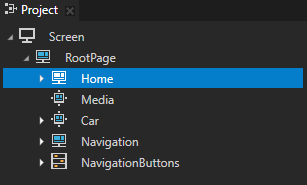
In this step of the tutorial you learn how to use keyboard keys to scroll in those application components which support scrolling. You also set the application focus to work with the pointer input.
Set keyboard keys to scroll the list box in the Car application screen
In this section you set focus to the Car Grid List Box node to allow the user to scroll the list items in the Car application screen.
To set keyboard keys to scroll the list box in the Car application screen:
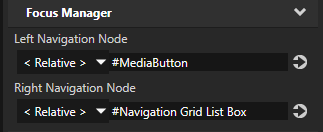
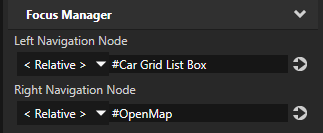
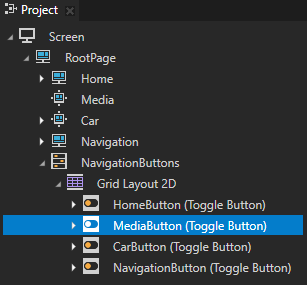
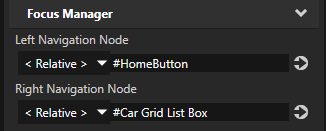
In the Project > RootPage > NavigationButtons > Grid Layout 2D select the MediaButton node and in the Properties set the Right Navigation Node property to #Car Grid List Box. You set focus from the MediaButton node to the Car Grid List Box node when the user presses the → (Right Arrow) key on their keyboard.
When a Grid List Box node has focus use:
The ↑ (Up Arrow) and ↓ (Down Arrow) keyboard keys to scroll the list items in a vertical list box
The → (Right Arrow) and ← (Left Arrow) keyboard keys to scroll the list items in a horizontal list box
The Home keyboard key selects the first list item
The End keyboard key selects the last list item
The Page Up and Page Down keyboard keys go to the beginning and end of the visible area of a list box
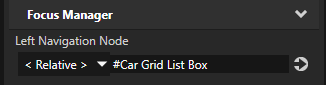
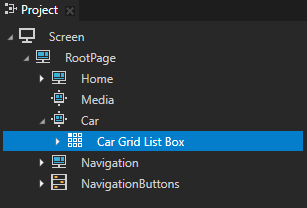
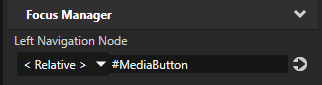
In the Project > RootPage > Car select the Car Grid List Box node and in the Properties add and set the Left Navigation Node property to #MediaButton. You set focus from the Car Grid List Box node to the MediaButton node when the user presses the ← (Left Arrow) key on their keyboard.
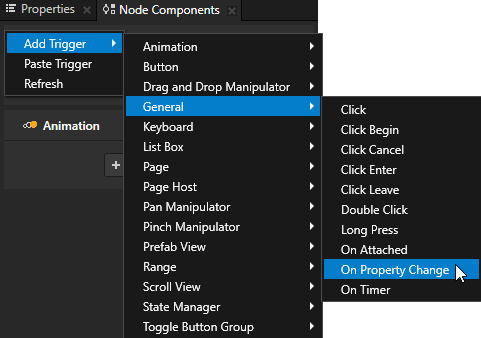
In the Project > RootPage > Car select the Car Grid List Box node and in the Node Components add to that node the On Property Change trigger. You use the trigger to execute a script which sets the state of the CarButton node to show that button is toggled on when the Car Grid List Box has focus.
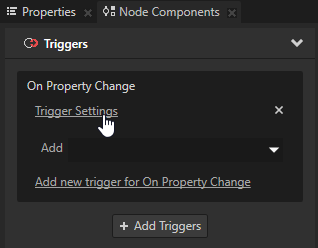
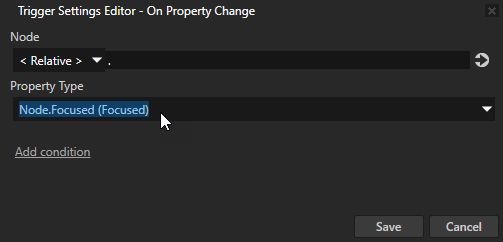
In the Node Components for the On Property Change trigger you created in the previous step click Trigger Settings and in the Trigger Settings Editor set the Property Type to Node.Focused. The On Property Change trigger sets off the actions you set in the trigger when the value of the Focused property of the Car Grid List Box node changes.
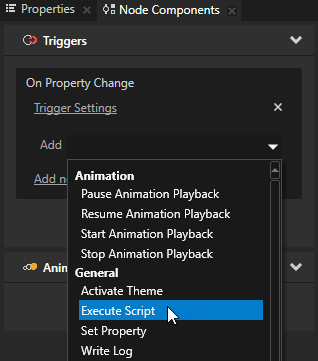
In the Node Components add to the On Property Change trigger an Execute Script action, and use the ButtonState.js script.
In the Execute Script window next to the dropdown click to open the ButtonState.js script in the Script Editor and replace:
else if (nodeInFocus == carButton)
{
    carButton.setProperty('ButtonConcept.ToggleState', 1);
}
with
// Check if the CarButton node or Car Grid List Box node has focus
// and set the CarButton state to toggled.
else if (nodeInFocus == carButton || nodeInFocus == carGridListBox)
{
    carButton.setProperty('ButtonConcept.ToggleState', 1);
}
When you are done writing the script, in the Script Editor click Save.
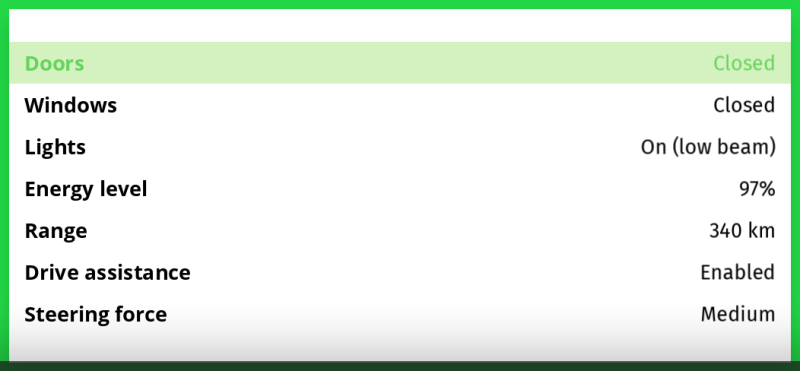
In the Preview when you use the → (Right Arrow) key to navigate to the Page node Car, use:
The ↑ (Up Arrow) and ↓ (Down Arrow) keys scroll the selection of list items.
The Home and Page Up keys select the first list item.
The End and Page Down keys select the last list item.
Set keyboard keys to scroll the list box in the Navigation screen
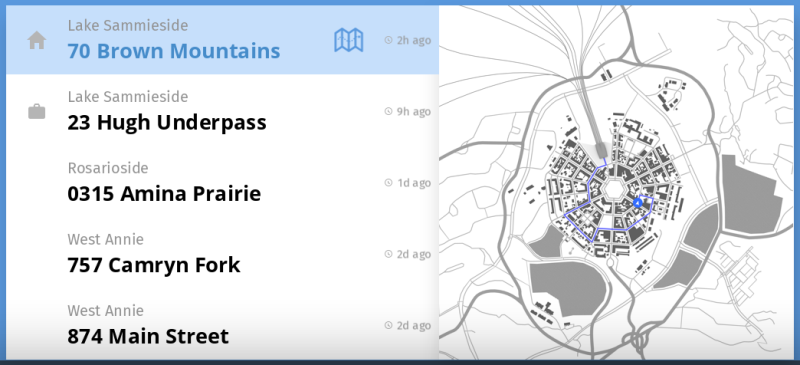
In this section you set focus to the Navigation Grid List Box node to allow the user to scroll the list items in the Navigation application screen.
To set keyboard keys to scroll the list on the Navigation application screen:
In the Project > RootPage > Car select the Car Grid List Box node and in the Properties add and set the Right Navigation Node property to #Navigation Grid List Box. You set focus from the Car Grid List Box node to the Navigation Grid List Box node when the user presses the → (Right Arrow) key on their keyboard.
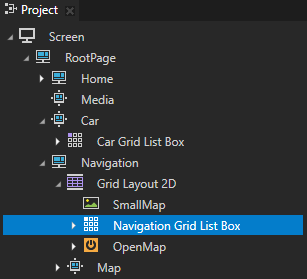
In the Project > RootPage > Navigation > Grid Layout 2D select the Navigation Grid List Box node and in the Properties add and set the Left Navigation Node property to #Car Grid List Box. You set focus from the Navigation Grid List Box node to the Car Grid List Box node when the user presses the ← (Left Arrow) key on their keyboard.
In the Project > RootPage > Navigation > Grid Layout 2D select the Navigation Grid List Box node, and in the Node Components add to that node the On Property Change trigger.
In the Node Components for the On Property Change trigger you created in the previous step click Trigger Settings and in the Trigger Settings Editor set the Property Type to Node.Focused.
In the Node Components add to the On Property Change trigger an Execute Script action, and use the ButtonState.js script.
Open the ButtonState.js script in the Script Editor and replace:
else if (nodeInFocus == navigationButton)
{
    navigationButton.setProperty('ButtonConcept.ToggleState', 1);
}
with
// Check if the CarButton node or Car Grid List Box node has focus
// and set the CarButton state to toggled.
else if (nodeInFocus == navigationButton || nodeInFocus == navigationGridListBox)
{
    navigationButton.setProperty('ButtonConcept.ToggleState', 1);
}
When you are done writing the script, in the Script Editor click Save.
In the Preview when you use the → (Right Arrow) key to navigate to the Page node Navigation, use:
The ↑ (Up Arrow) and ↓ (Down Arrow) keys scroll the selection of list items.
The Home and Page Up keys select the first list item.
The End and Page Down keys select the last list item.
Set a key to open the Map application screen
In this section you set focus to the button which opens the Map application screen.
To set a key to open the Map application screen:
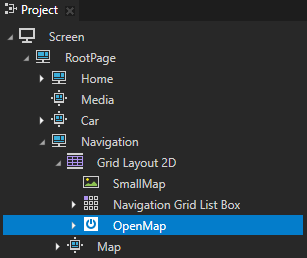
In the Project > RootPage > Navigation > Grid Layout 2D select the Navigation Grid List Box node and in the Properties add and set the Right Navigation Node property to #OpenMap. You set focus from the Navigation Grid List Box node to the OpenMap button when the user presses the → (Right Arrow) key on their keyboard.
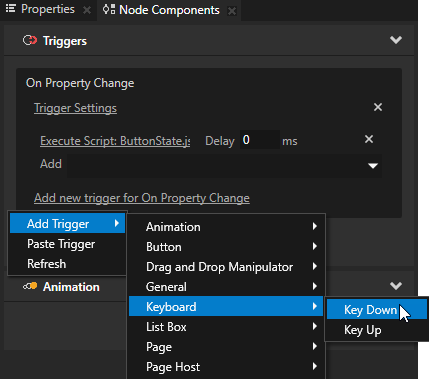
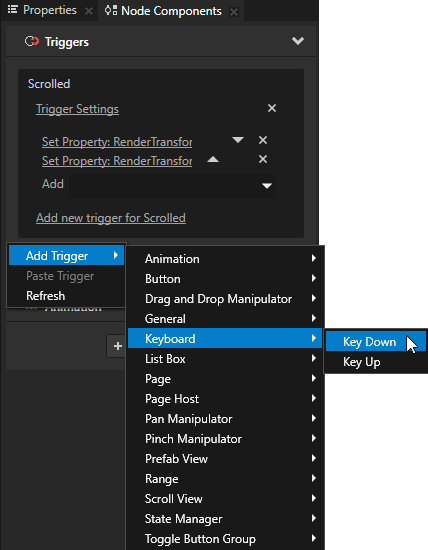
In the Project > RootPage > Navigation > Grid Layout 2D select the Navigation Grid List Box node and in the Node Components add a Key Down trigger.
In the Trigger Settings Editor for the trigger you created in the previous step add a condition:
Value A
Value From to Message
Argument to Key
Operator to =
Value B
Value From to Fixed
Fixed Value to 64
You set the trigger to be set off when the user presses the → (Right Arrow) key.
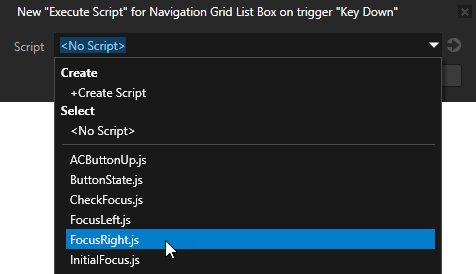
In the Node Components add to the Key Down trigger you created in the previous step an Execute Script action and use the FocusRight.js script.
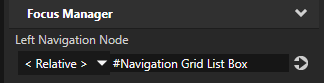
In the Project > RootPage > Navigation > Grid Layout 2D select the OpenMap node and in the Properties add and set the Left Navigation Node property to #Navigation Grid List Box.
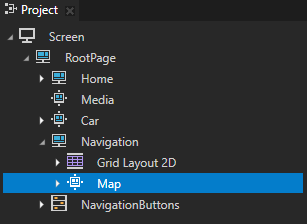
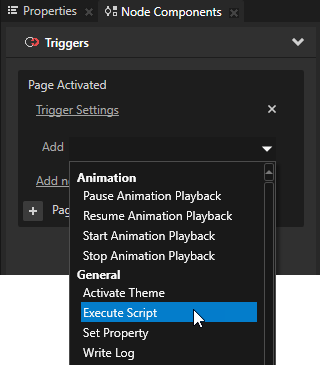
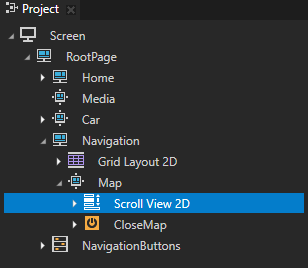
In the Project > RootPage > Navigation select the Map node, in the Node Components add to the Page Activated trigger an Execute Script action, and in the Execute Script window use the CheckFocus.js script.
Open the CheckFocus.js script in the Script Editor and add to that script a condition which sets focus to the Scroll View 2D node when the Map page is active:
// Get the Page node Navigation.
var navigationPage = node.lookupNode('#Navigation');
var navigationGridListBox = node.lookupNode('#Navigation Grid List Box');
var navigationActive = navigationPage.getProperty('Page.State');

var mapPage = node.lookupNode('#Map');
var mapScrollView = node.lookupNode('#Scroll View 2D');
var mapActive = mapPage.getProperty('Page.State');

...

// Check if the Page node Navigation is active.
// If the Page node Map is active, set focus to the Scroll View 2D node.
// If the Page node Map is not active, set focus to the Navigation Grid List Box node.
else if (navigationActive == 1)
{
    if (mapActive == 1)
    {
        mapScrollView.trySetFocus();
    }
    else
    {
        navigationGridListBox.trySetFocus();
    }
}
When you are done writing the script, in the Script Editor click Save. You use the script to set focus to the Scroll View 2D node when the Map page is active to enable the user to use the arrow keys on their keyboard to scroll the map.
When you set focus to the button which you use to open the Map application screen, press the Enter key on the keyboard to click that button.
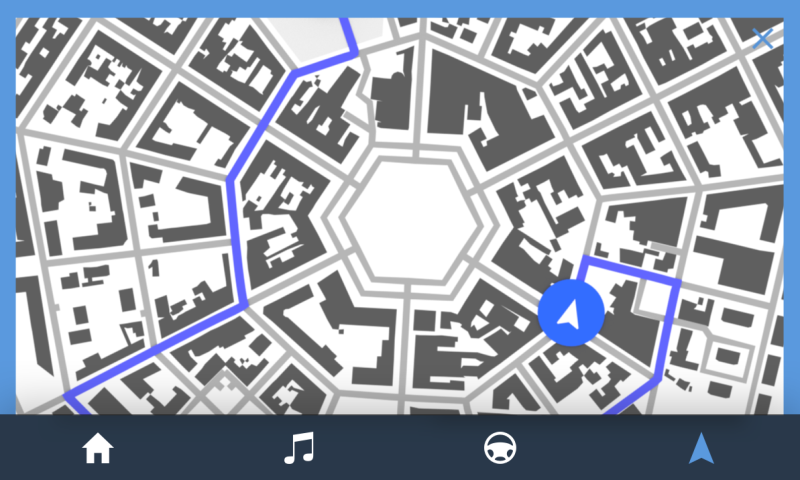
When you navigate to the Map application screen, you can use the arrow keys on the keyboard to scroll the map.
Set a key to close the Map application screen
In this section you set the Map window to close when the user presses the E key.
To set a key to close the Map application screen:
In the Project > RootPage > Navigation > Map select the Scroll View 2D node and in the Node Components add a Key Down trigger.
In the Trigger Settings for the trigger you created in the previous step click Add condition and in the Trigger Condition Editor set:
Value A
Value From to Message
Argument to Key
Operator to =
Value B
Value From to Fixed
Fixed Value to 19
In the Trigger Condition Editor and the Trigger Settings Editor windows click Save You set the application to close the Map application screen when the user presses the E key.
Add to the trigger the actions you need to close the Map application screen:
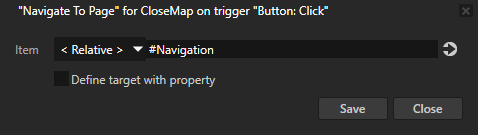
A Navigate to Page action and set the Item to #Navigation. You set the application to navigate to the Navigation page.
An Execute Script action and in the Execute Script window use the CheckFocus.js script. You use the script to set focus to the Navigation Grid List Box when the user closes the Map application screen. You use the script to set focus to the navigation bar when the user closes the Map application screen.
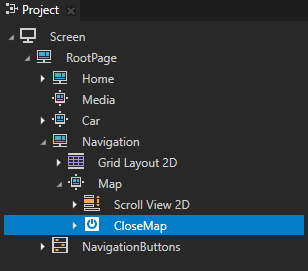
In the Project > RootPage > Navigation > Map select the CloseMap node, in the Node Components add to the Button: Click trigger an Execute Script action, and in the Execute Script window use the CheckFocus.js script. When the user uses the pointer to click the CloseMap button which closes the Map application screen, the application sets the focus back to the Navigation Grid List Box node.
In the Preview use the E key to close the Map application screen.
Finalize the keyboard navigation
In this section you finalize the keyboard navigation to make sure that the key input works together with pointer input. Because you set focus based on which keyboard key the user presses, using the pointer does not set the focus in the correct place. If you use the keyboard to navigate to a Page node which gets focus, and then use the pointer to close that application screen, the focus remains on that Page node.
To finalize the keyboard navigation:
In the Library > Resource Files > Scripts double-click the CheckFocus.js script to open it in the Script Editor, and add to that script conditions:
...

var mediaPage = node.lookupNode('#Media');
var mediaActive = mediaPage.getProperty('Page.State');
var mediaButton = node.lookupNode('#MediaButton');

var carPage = node.lookupNode('#Car');
var carGridListBox = node.lookupNode('#Car Grid List Box');
var carActive = carPage.getProperty('Page.State');

...

// Check if the Page node Media is active and set focus to the MediaButton node.
else if (mediaActive == 1)
{
    mediaButton.trySetFocus();
}
// Check if the Page node Car is active and set focus to the Car Grid List Box node.
else if (carActive == 1)
{
    carGridListBox.trySetFocus();
}
In the Project > RootPage select the Home node, in the Node Components add to the Page Activated trigger an Execute Script action, and in the Execute Script window use the CheckFocus.js script.
Repeat the previous step for the Page nodes Media, Car, and Navigation.
In the Preview you can now use both the keyboard keys you have defined in this tutorial and your pointer to navigate the application.
Use these keyboard keys to navigate the application:
→ (Right Arrow) and ← (Left Arrow) keys to navigate between the application screens.
In the Home screen use:
→ (Right Arrow) and ← (Left Arrow) keys to navigate between the Recent and Favorite screens.
↑ (Up Arrow) key to:
Set focus to the button which navigates to the AirCondition screen.
If the button has focus, navigate to the Recent or Favorite screen based on which of those screens is active.
↓ (Down Arrow) key to:
Set focus to the button which navigates to the AirCondition screen.
If the button has focus, set focus to the Screen node to use the navigation bar.
Enter key to navigate to the AirCondition screen when the button has focus.
In the AirCondition screen use:
→ (Right Arrow) and ← (Left Arrow) keys to:
Navigate between the Driver and Passenger screens.
Set slider values.
↑ (Up Arrow) key to set focus to the slider.
↓ (Down Arrow) key to set focus to the Driver or Passenger screen.
E key to close the AirCondition screen.
In the Car screen use:
↑ (Up Arrow) and ↓ (Down Arrow) keys to scroll the list box items.
In the Navigation screen use:
↑ (Up Arrow) and ↓ (Down Arrow) keys to scroll the list box items.
Enter key to navigate to the Map screen.
In the Map screen use:
→ (Right Arrow), ← (Left Arrow), ↑ (Up Arrow), and ↓ (Down Arrow) keys to scroll the map.
In this tutorial you learned how to add keyboard input to an application using the Key Down trigger and JavaScript scripts. Now you can learn more about how to:
Handle focus in your Kanzi applications. See Focus.
Use triggers in your Kanzi applications. See Using triggers.
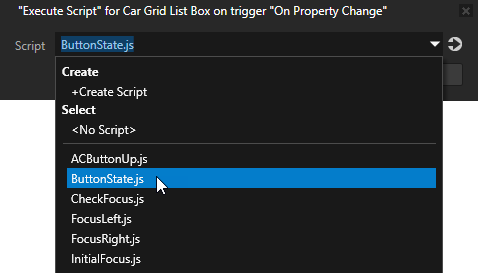
 to open the ButtonState.js script in the Script Editor and replace: